Gloves on? Ask Siri.
“Siri, start Heavy bag in Ringside.”
Saved timers start by name. Or say “Start intervals in Ringside” and Siri asks for rounds, round length and rest.
 Rarely Impossible

Ringside: Round Timer
Boxing, skipping & HIIT timer · iPhone · Version 1.1
No ads. No account. Just rounds.
The round timer you can read from across the gym. Set your rounds, work and rest, press start, and the whole screen becomes the timer.
The running screen
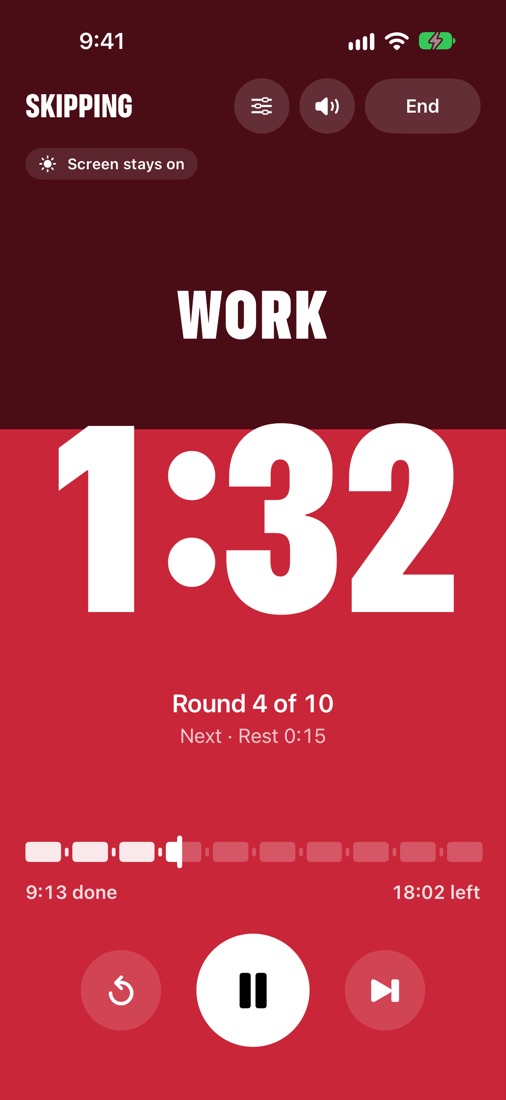
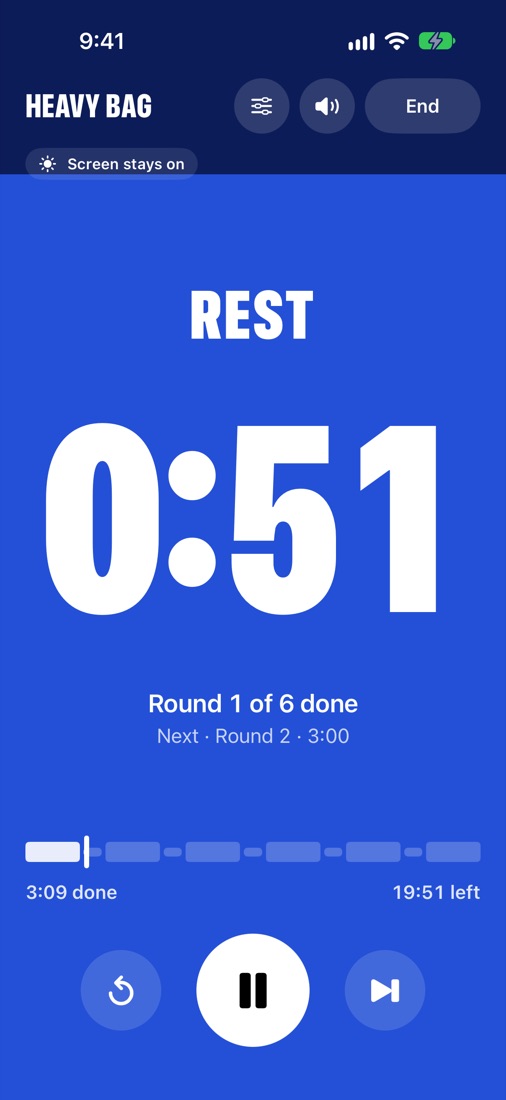
Red for work, blue for rest. The colour drains down the screen as each round runs out, so one glance from the bag, the rope or the treadmill tells you where you are. Huge numbers, readable from metres away, and the screen stays on for the whole session.
Short on time?
The round strip along the bottom is the whole workout. Drag it left or right to jump to any point: the colour and the clock follow your finger, and it lands where you let go. Pause, skip or restart with big, glove-friendly buttons.
Try it: drag the strip at the bottom of the timer.
Sounds for every timer
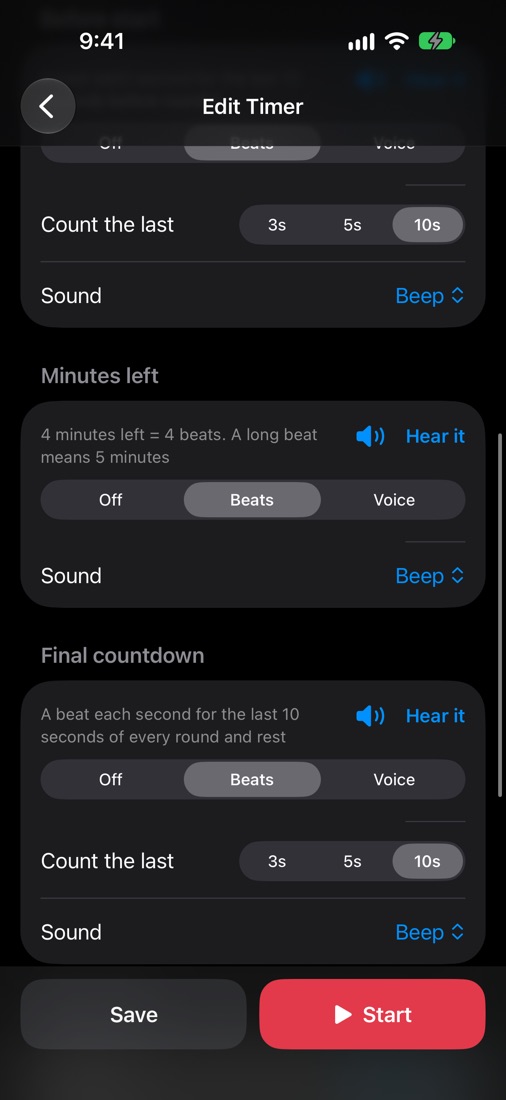
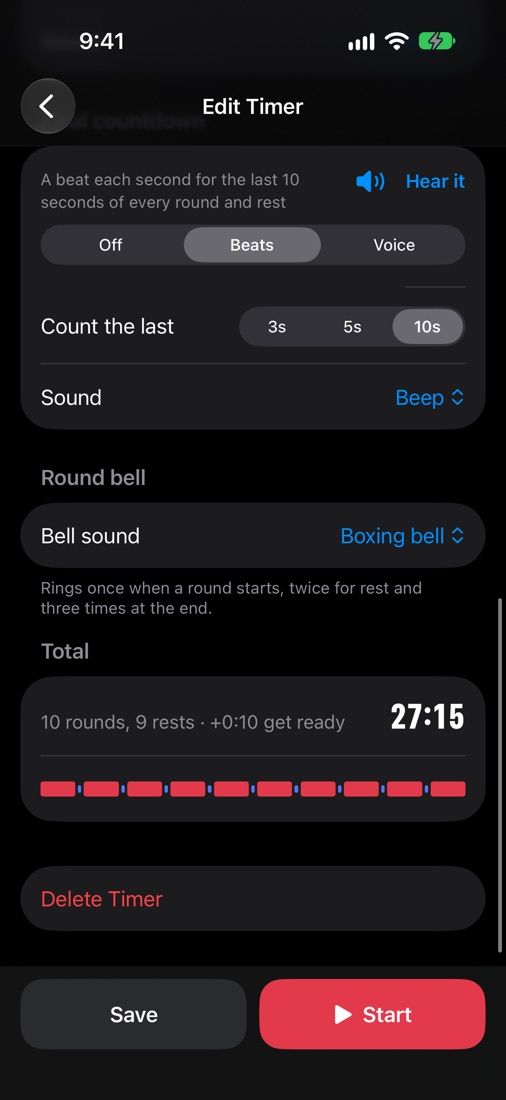
Pick beeps or a voice for each timer. Count yourself in before round one, hear “4 minutes left”, and count down the last 3, 5 or 10 seconds of every round and rest. Your music keeps playing underneath, and the sounds carry on with the phone locked or the silent switch on.
Tap a sound to hear the last three seconds. These are the real sounds from the app.
Gloves on? Ask Siri.
“Siri, start Heavy bag in Ringside.”
Saved timers start by name. Or say “Start intervals in Ringside” and Siri asks for rounds, round length and rest.
Phone locked? Still counting.
Lock your phone or switch to your music app: the bells and countdowns keep coming on time. Glance at your Lock Screen or the Dynamic Island to see the time left.
Your rounds
Heavy bag, skipping, shadow boxing, treadmill: set each one up once, with rounds from a few seconds to two hours, and start it with one tap. Change a timer mid-workout and you pick up where you left off.
Works in light and dark mode, with larger text and with VoiceOver.
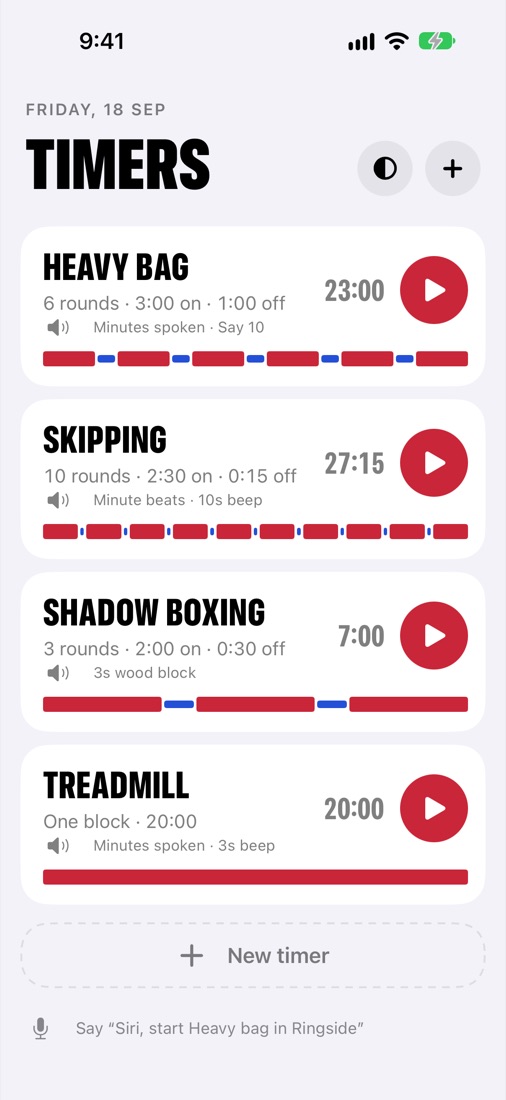
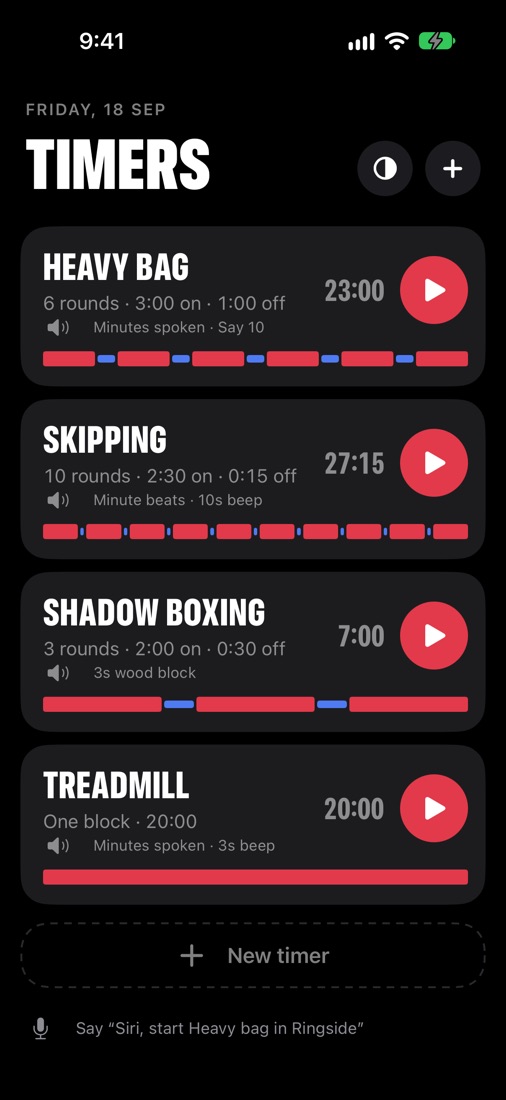
Watch how it works
What’s new
What changed and when. Updates are free, and there is never anything to buy inside the app.
1.1
20 October 2026
The first release: rounds, work and rest with a get-ready countdown, a screen that turns red for work and blue for rest, a real boxing bell and eight sounds to count you in, a round strip you can drag to jump anywhere, the countdown on your Lock Screen and in the Dynamic Island, and Siri to start a timer with your gloves on.
Support
Something not working, or an idea for the app? Email [email protected] with your iPhone model and iOS version. Replies usually within two working days.
They shouldn't: Ringside keeps playing bells and countdowns with the phone locked while a workout is running. Check the speaker button on the running screen isn't crossed out, and that your iPhone's volume is up. The silent switch doesn't mute Ringside. Sounds pause while the workout is paused.
Tap the “Screen stays on” button at the top of the running screen. If it says “Screen can sleep”, the screen is allowed to turn off.
Open the Settings app, tap Ringside and make sure Live Activities is switched on. The countdown only shows while a workout is running.
Say the app's name, Ringside, at the end: “Siri, start Heavy bag in Ringside”. Use the timer's name exactly as it appears in the list. After installing, Siri can take a few minutes to learn the phrases. You'll also find them in the Shortcuts app under Ringside.
Tap a timer's name to edit it, then scroll to the sound sections: Before start, Minutes left, Final countdown and Round bell. Each has Off, Beats or Voice, plus a choice of eight sounds. Use “Hear it” to try them.
Drag along the round strip at the bottom of the running screen: it follows your finger and jumps to that point when you let go. The big buttons pause, skip to the next part, or restart the part you're in.
Swipe left on it in the list, or open it and tap Delete Timer at the bottom.
No. There's no account, no ads and no tracking, and your timers stay on your phone. See the Ringside privacy policy.