Open
Open the project in VS Code, Finder or Terminal, or in the app it usually opens with. Use a different editor or terminal? Pick yours instead.
 Rarely Impossible
Project Board
Menu bar app · Mac
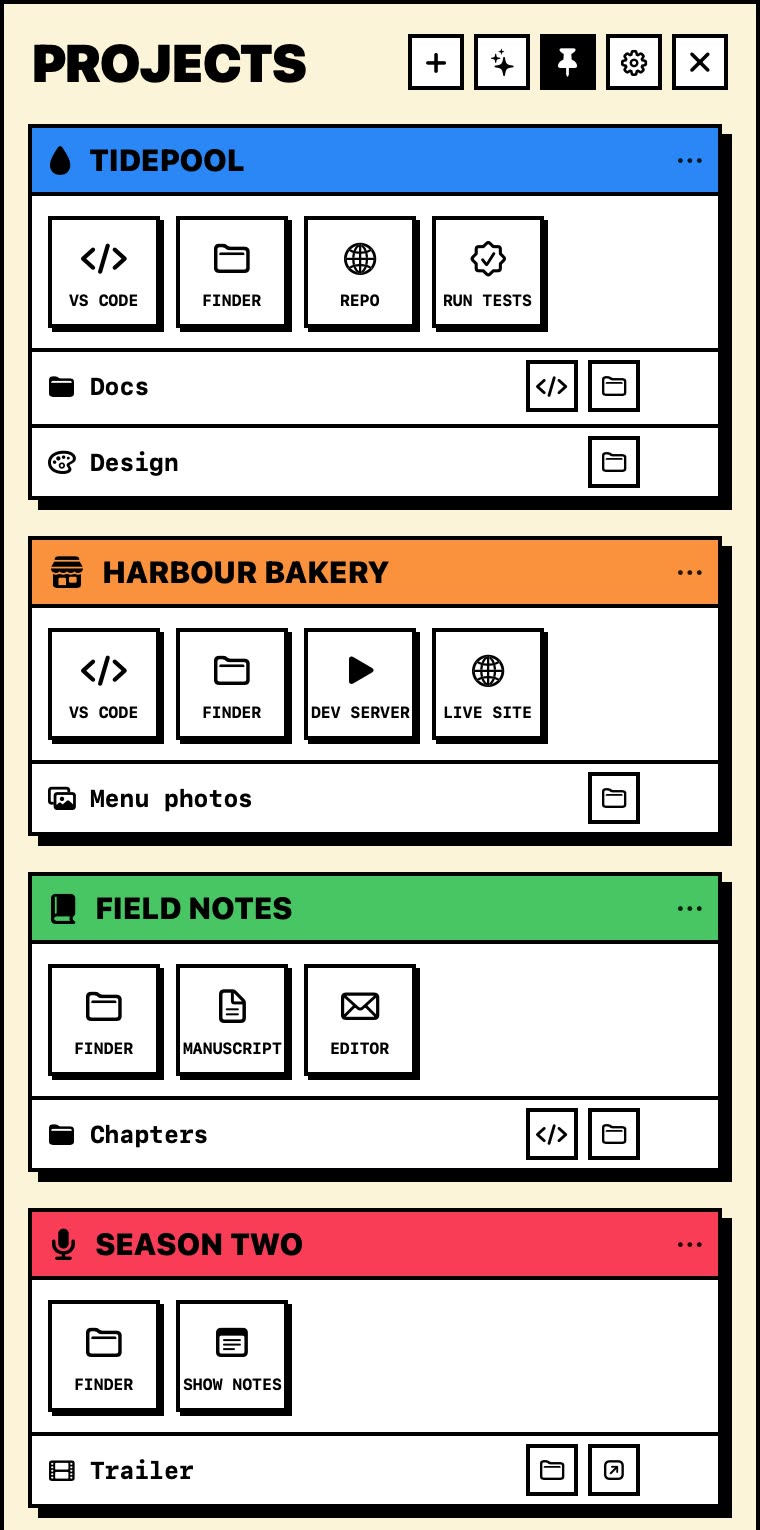
Press ⌥⌘P and a panel slides in over whatever you're doing, even a full-screen app. Every project is there with its own buttons: open it in your editor, Finder or Terminal, visit its website or run its commands. One click, and you're back at work.
The panel slides in from the right edge, over a full-screen app. The button below shows and hides it, just as pressing Option-Command-P does.
Try it: tap the keys, or press ⌥⌘P on your keyboard. Esc hides it.
The problem
An app, a website, a client job, a podcast. Each one lives in its own folder, opens in its own editor, and has something to run and a site to check. So you dig through Finder, hunt for the right Terminal tab and type the same command again.
One panel, every project, one key
The panel
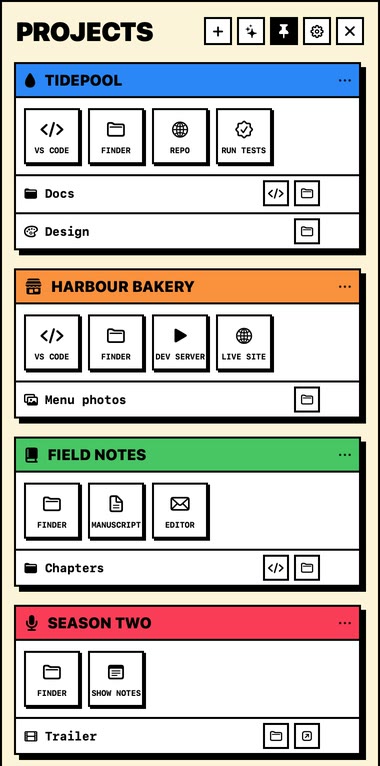
Each project gets a coloured header and a row of big buttons, with its folders and files underneath. Nothing to open up or dig through. Click a button and it's done, and the panel tucks itself away when you click elsewhere or switch apps, unless you pin it.
Open the project in VS Code, Finder or Terminal, or in the app it usually opens with. Use a different editor or terminal? Pick yours instead.
Launch any app on your Mac, either with the project open in it or on its own.
Any link, opened in the browser you choose. Links that open other apps, such as an email link, work too.
Run a command in a Terminal window, or quietly in the background. Hover over a command button to see exactly what it runs.
The four kinds of button, in the Brutalist look.
Keep a project's docs, designs or a single file underneath it, each with small buttons of its own.
Start a dev server or a build quietly in the background. It runs with your usual Terminal setup, so the tools you've installed are there.
While one runs, right-click the menu bar icon and choose Stop Background Command. Quitting the app stops them too.
Hover over a project and a + appears for adding a button. Right-click a project, a row or a button to change it.
Add a folder and it gets VS Code, Finder and Terminal buttons straight away, plus a Repo button that opens its online repository, if it has one.
Deleting a project only takes it off the panel. No files are touched.
NEW Describe with AI
Tell it about your projects the way you'd tell a friend: which folder, which editor, the sites you check, the commands you run. It sets each one up with its buttons, ready to click, and shows it in your panel's own look so you can check it first. Do several at once. Nothing is saved until you say so.
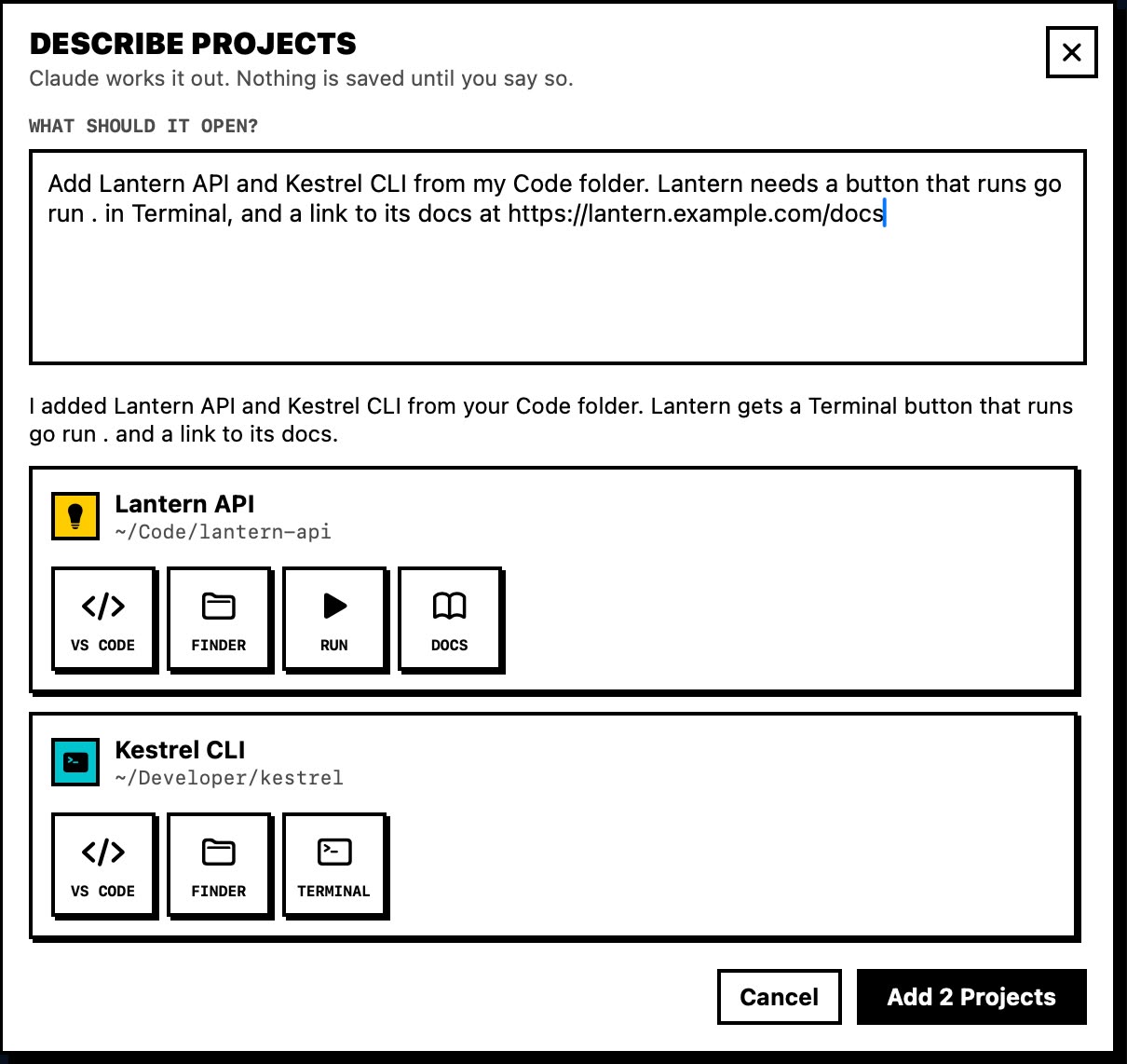
Click the ✦ button at the top of the panel and say what each project should open, in your own words. Describe as many as you like.
Press Work It Out and you see exactly what will be sent before anything leaves your Mac. Leave out your folder list if you like, then send it, or don't. It finds the folders you mean and makes the buttons for you: editors, folders, links and commands.
You get a short summary, a note about anything it couldn't find, and each project as it will look in your panel. Press Add, or change your words and try again.
Just say what should be different. Everything you didn't mention stays as it was, in the same order.
Add a button that runs the tests in Terminal, and open the docs in Safari.
Work in dev containers? Ask for one and you get a Container button that opens the project inside it in VS Code. The app sets that button up itself from the project's own settings, so nothing is guessed.
⚠ No dev container set up in ~/Code/tidepool
It uses the links, folders and apps you mention or that it finds on your Mac. It will turn a social handle into a link, but it won't make up an address it doesn't know. It leaves that button out and tells you.
⚠ Folder not found: ~/Code/old-site
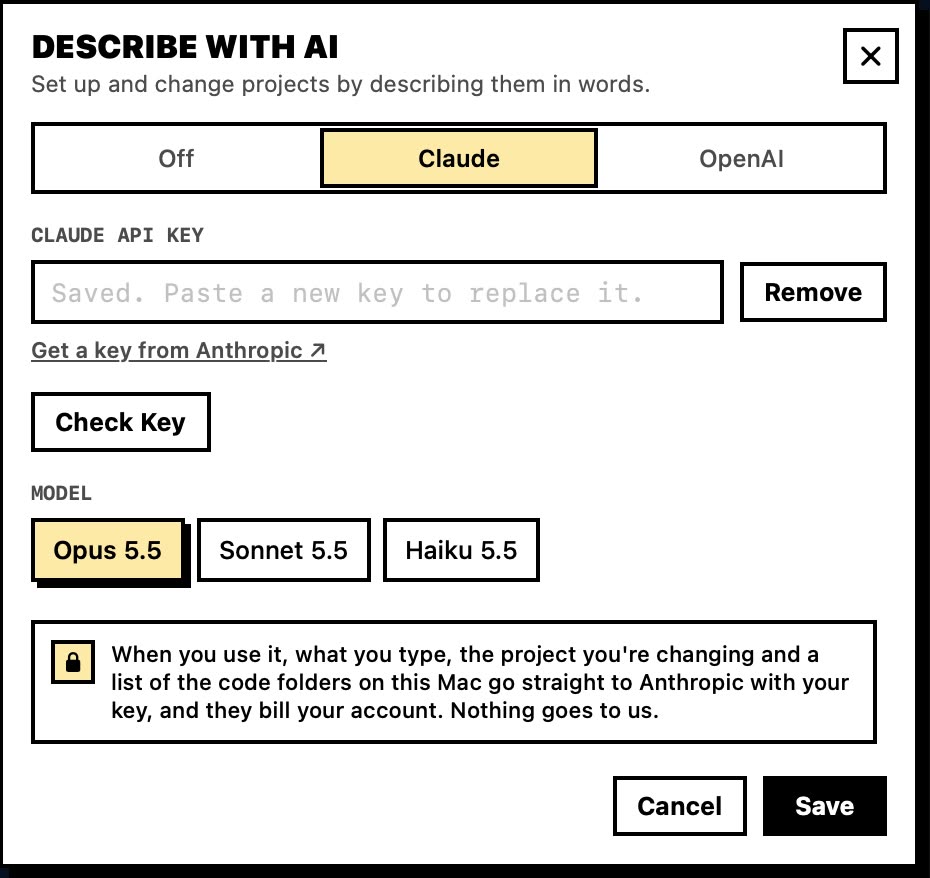
The privacy policy lists exactly what's sent, line by line.
Six looks
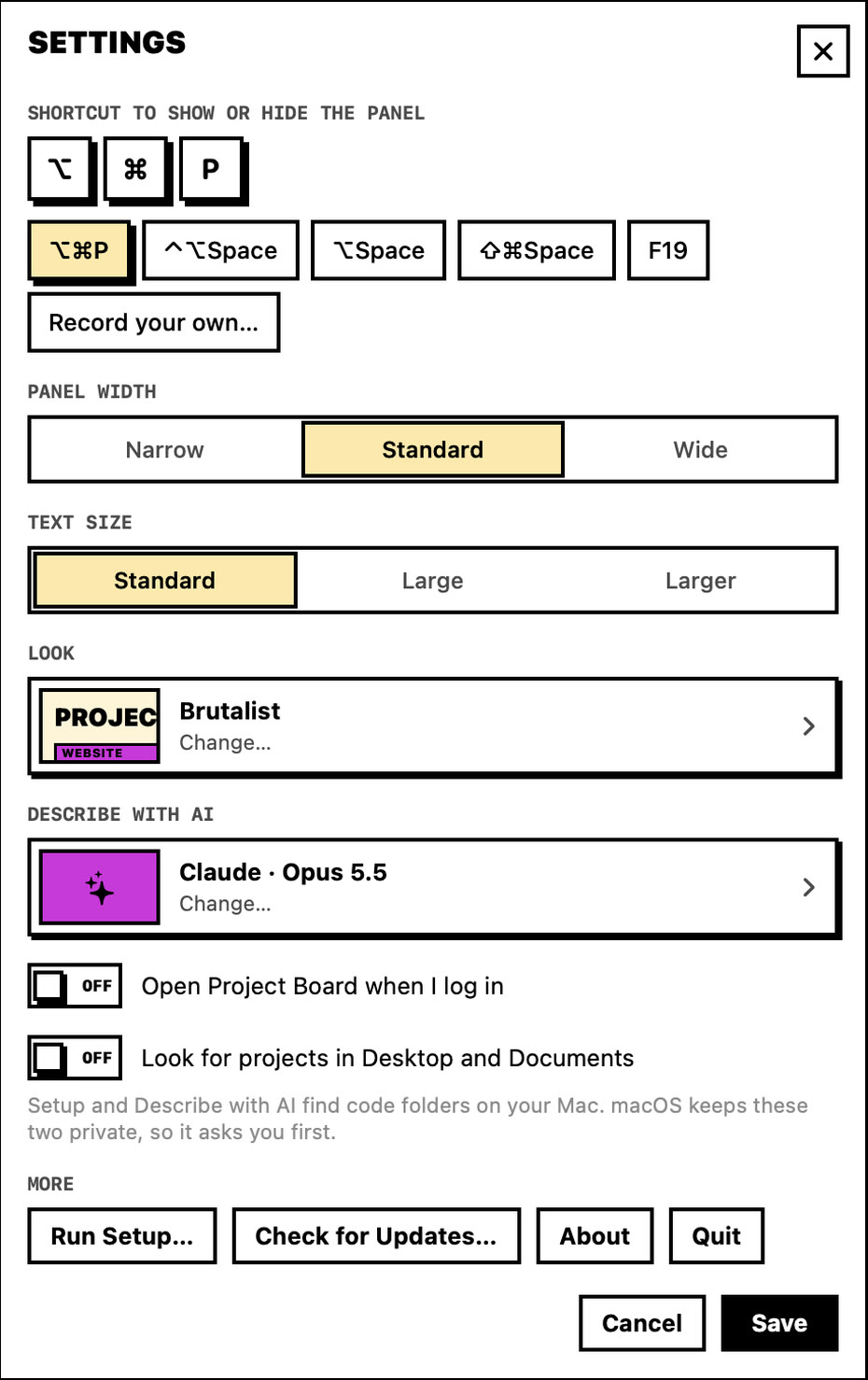
Brutalist is the default. Five more are a click away in Settings, and the panel changes as you pick, so you can see each one. Choose a width too: Narrow, Standard or Wide.
The same projects, in each look.
Setup
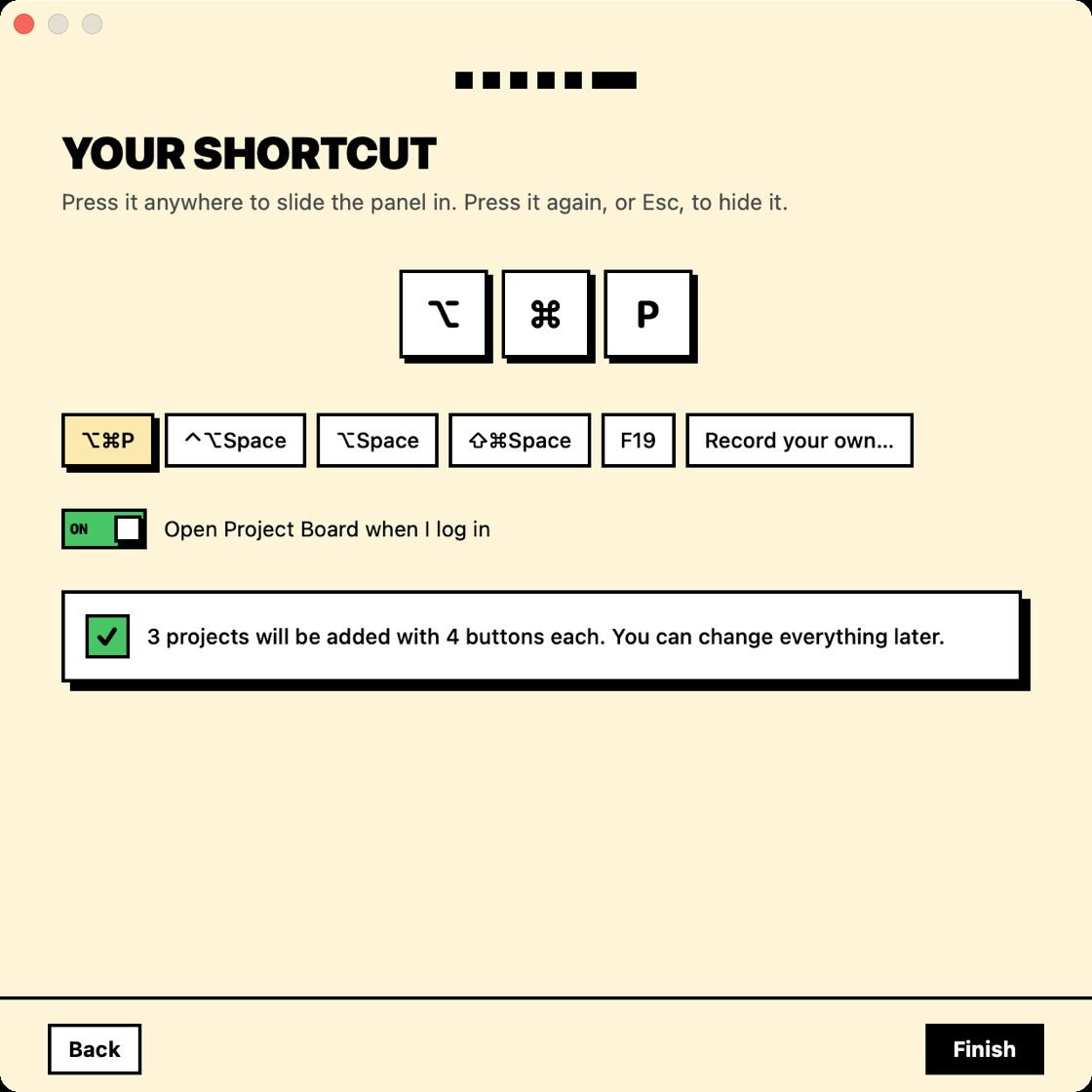
The first time it opens, a short setup walks you through it: pick a look, turn on Describe with AI if you want it, then describe your projects or pick them from a list, choose your usual buttons and set your shortcut. Run it again any time from Settings.
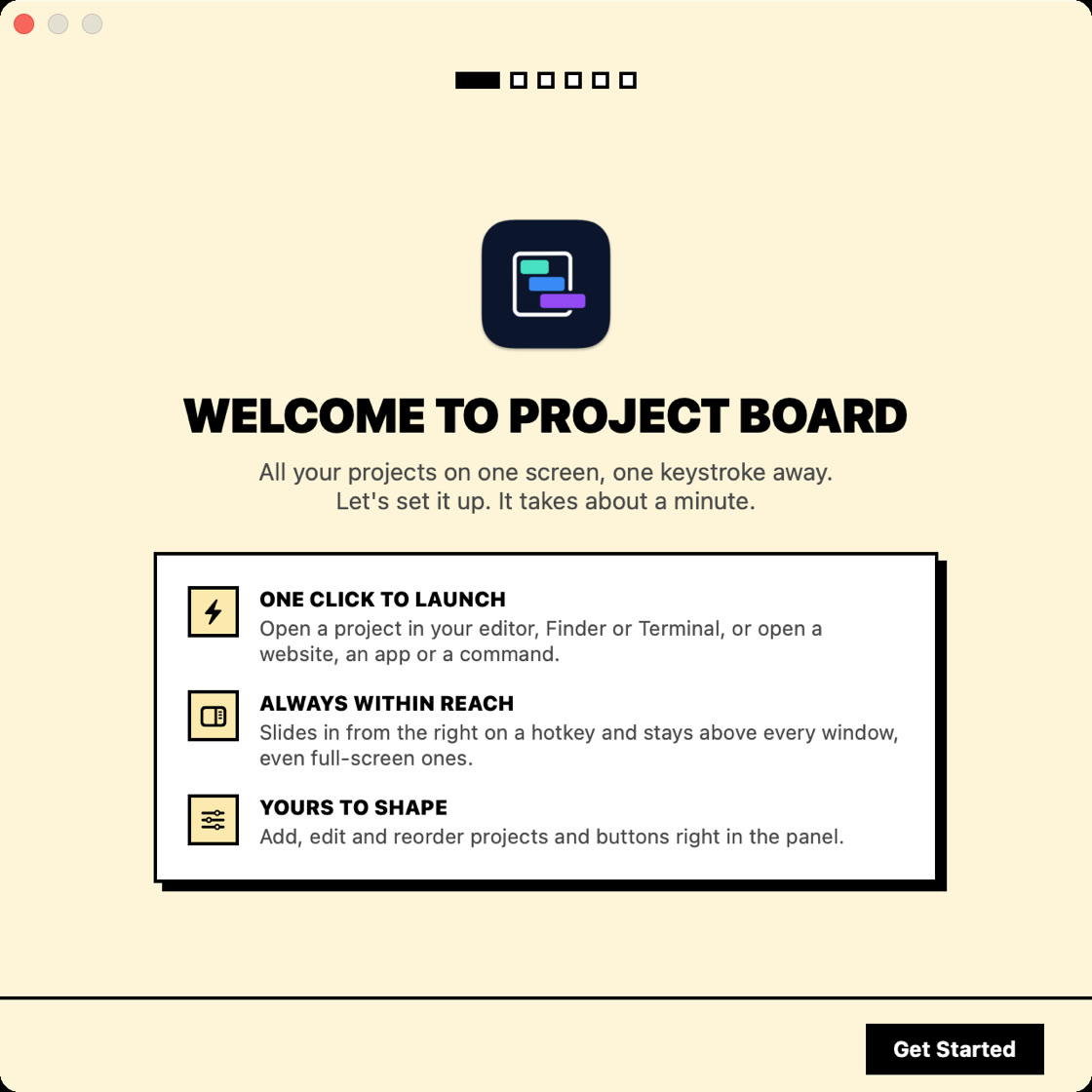
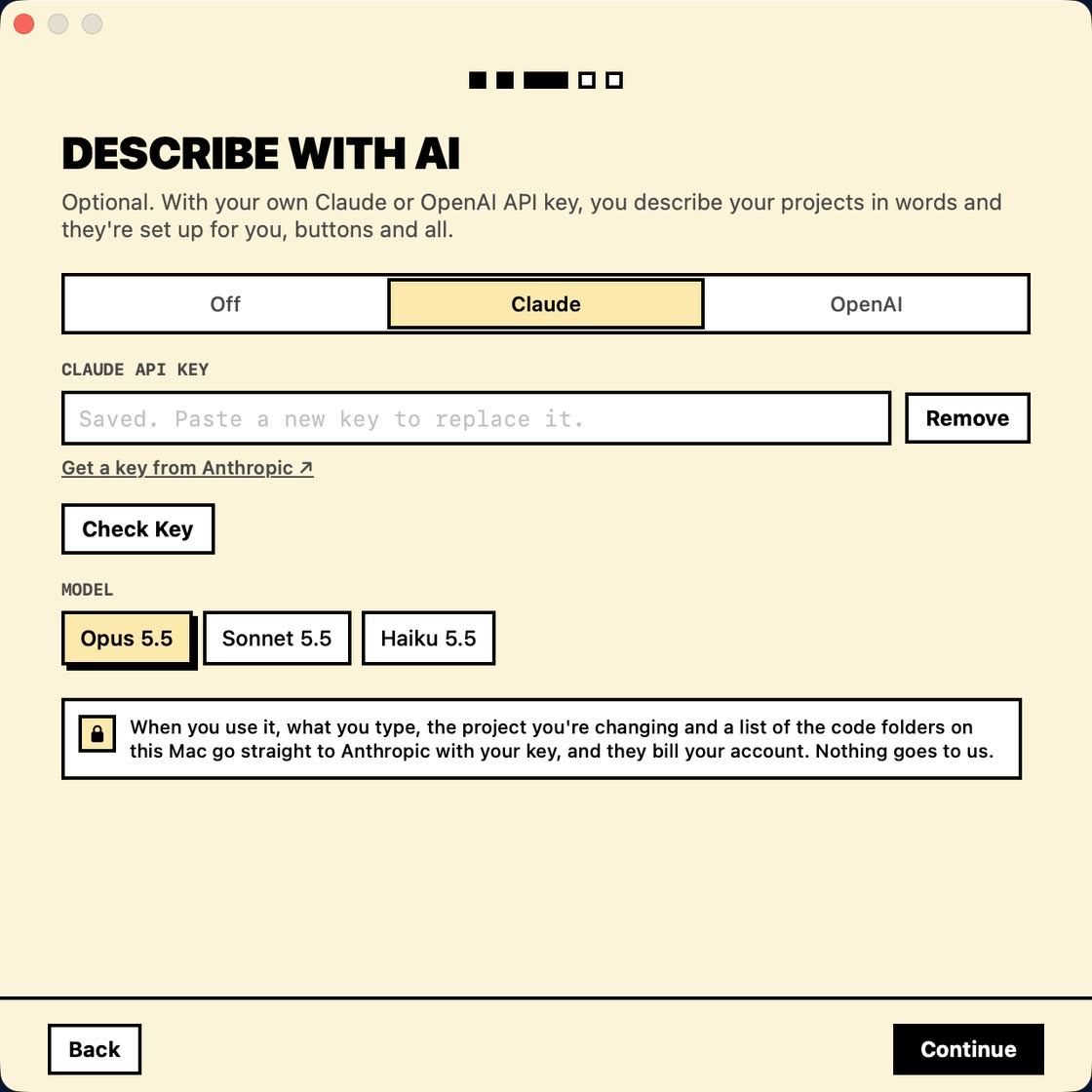
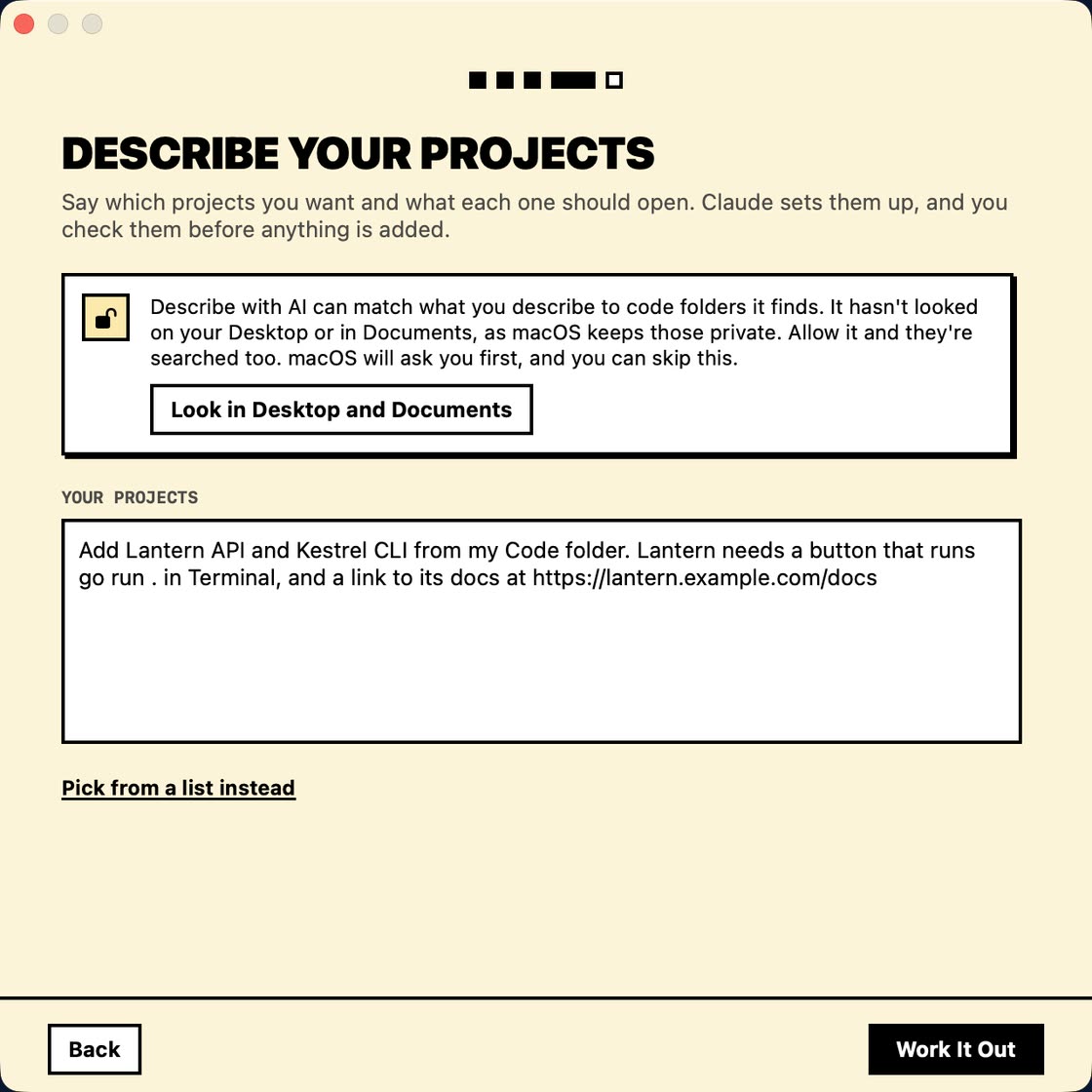
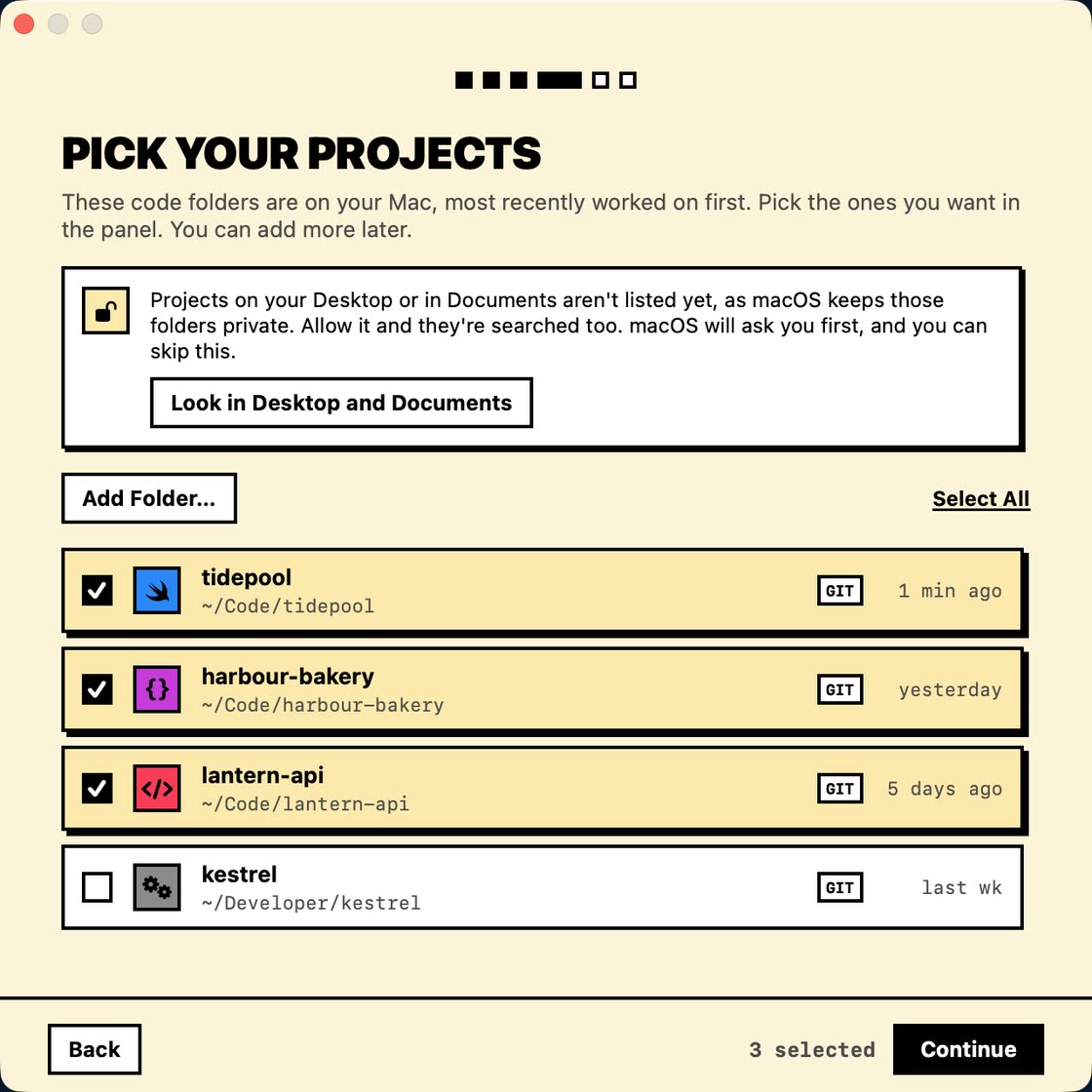
It looks in the usual places, like your Code, Developer, Projects and Sites folders, and lists the code projects it finds, most recently worked on first. The search happens on your Mac.
macOS keeps Desktop and Documents private, so Project Board doesn't look there unless you click Look in Desktop and Documents, in setup or Settings. Then macOS asks you first. No pop-ups out of the blue.
Keys and links
Control the panel from the Shortcuts app, a launcher or your own scripts by opening one of these links.
projectboard://toggleShow or hide the panelprojectboard://show …/hideShow it, or hide itprojectboard://pin …/unpinPin or unpin it, without showing itprojectboard://describeDescribe new projects (or turn Describe with AI on, if it's off)projectboard://settingsOpen Settings; look, ai and about open those windowsprojectboard://setupRun setup againFor power users
You never have to open it. Everything can be done in the app, settings included: shortcut, panel width, look, Describe with AI, opening when you log in, and whether to look in Desktop and Documents.
But if you like editing by hand, your projects are kept in one plain text file on your Mac, ~/.config/project-board/projects.json. Save a change and the panel catches up within a second. Change something in the app and the file updates too. Only your user account can read it, since commands can hold passwords.
If an edit breaks the file, the app tells you, offers to open it, and won't overwrite your work until it's fixed.
{
  "name": "Harbour Bakery",
  "path": "~/Code/harbour-bakery",
  "color": "orange",
  "actions": [
    { "type": "vscode" },
    { "type": "finder" },
    { "type": "shell", "label": "Dev server",
      "command": "npm run dev" },
    { "type": "url", "label": "Live site",
      "url": "https://harbour-bakery.example.com" }
  ]
}
Watch how it works
Private by design
No ads, no tracking, no accounts. Your projects stay on your Mac. Describe with AI is optional and off until you turn it on, and then it uses your own AI account: your AI, privacy first.
Never sent: what's inside your files, your projects file, or your other projects' buttons.
Project Board is coming soon for the Mac.
Support
Something not working, or an idea for the app? Email [email protected] with your Mac model and macOS version. Replies usually within two working days.
A Mac with Apple silicon running macOS 14 Sonoma or later. It doesn't run on Intel Macs.
It lives in the menu bar, so there's no Dock icon. Press ⌥⌘P, or click its icon in the menu bar. Right-click the icon for Settings, About, Run Setup and Quit.
No. Describe with AI is optional and off until you turn it on, and everything else works without it. To use it, add your own Claude or OpenAI API key in Settings. Anthropic or OpenAI bills your account for what you use.
Only when you use it, and straight to Anthropic or OpenAI with your key: what you type, the app's instructions, your home folder path, the code folders it found (name, location and online repository address), the names of your browsers and your other projects, and, when you're changing a project, that project with its buttons, links and commands. It never sends what's inside your files. Nothing goes to us. The privacy policy has the full details.
Yes. In Settings, pick ⌥⌘P, ⌃⌥Space, ⌥Space, ⇧⌘Space or F19, or choose Record your own. A shortcut needs a modifier key unless it's a function key.
Only if you ask Project Board to look there, with Look in Desktop and Documents in setup or Settings. macOS keeps those folders private, so it checks with you first. Say no and projects there simply aren't found. You can still add any folder yourself.
Right-click the menu bar icon and choose Stop Background Command. Background commands also stop when you quit Project Board.
Yes, though you never have to: everything can be done in the app. If you'd like to, they're in ~/.config/project-board/projects.json, and the panel updates within a second of you saving it.
It never needs Accessibility: its shortcut uses the standard macOS keyboard shortcut system, and commands open in Terminal the ordinary way. It only asks to control another app if you set a link to open in a particular Arc space, and then only once.
Soon. Project Board is being prepared for release.